1722515631
2024-07-31 12:57:48
2024年7月31日
スタニスワフ・ショコウスキー著
タグ:
Episerver/Optimizely には、内部 EPI ジョブと単純なカスタム ケースに対応するビルド ScheduledJobs サポートが含まれていますが、アプリが大きくなり、必要なジョブの数が増えると、専用のソリューションでは機能しなくなります。
Hangfireとは何か、なぜ使うのか
Hangfire は、バックグラウンド ジョブ (つまり、リクエスト処理パイプラインに入れたくない操作) の作成、処理、管理に役立つオープン ソース フレームワークです。
- 大量通知/ニュースレター;
- xml、csv、json からのバッチインポート。
- アーカイブの作成;
- Webhook の起動。
- ユーザーの削除;
- さまざまなグラフを構築する。
- 画像/ビデオ処理;
- 一時ファイルを消去します。
- 定期的な自動レポート。
- データベースのメンテナンス。
また、商用利用も無料です (追加機能は有料)。再試行ポリシー、さまざまな種類のジョブ、スケールアップもサポートされています。また、ジョブと呼ばれるシリアル化可能なメソッドを使用できることも非常に便利です。
から ハングファイア
Foundation プロジェクトを例に、いくつかの手順で Hangfire を Episerver/Optimizely 12 に追加する
まず、次のコマンドを使用して、Hangfire および Hangfire.Console Nuget パッケージをプロジェクトにインストールします。
dotnet add package Hangfire --version 1.8.14
dotnet add package Hangfire.Console --version 1.4.3
セキュリティが最優先なので、まずは管理者だけがアクセスできるように認証フィルターを追加しましょう。
using Hangfire.Annotations;
using Hangfire.Dashboard;

namespace Foundation.Features.Hangfire;

public class HangfireAuthorizationFilter : IDashboardAuthorizationFilter
{
    public bool Authorize([NotNull] DashboardContext context)
    {
        return EPiServer.Security.PrincipalInfo.CurrentPrincipal.IsInRole("CmsAdmins");
    }
}
CMS UI 内にネストされた優れた Hangfire UI を使用するには、そのためのコントローラーを作成する必要があります。
namespace Foundation.Features.Hangfire;

[Authorize(Roles = "CmsAdmin,WebAdmins,Administrators")]
[Route("[controller]")]
public class HangfireCmsController : Controller
{
    [Route("[action]")]
    public ActionResult Index()
    {
        return View();
    }
}
次に、コントローラーのビューを追加しましょう。Hangfire UI には iframe を使用するので、EPI ナビゲーションを維持します。
@using EPiServer.Framework.Web.Resources
@using EPiServer.Shell.Navigation
@{
Layout = string.Empty;
}
lang="en">
Epi ナビゲーションを維持するためにすべての問題を乗り越えて、Epi ナビゲーションと統合する必要があるため、メニュー プロバイダーを実装しましょう。
using EPiServer.Authorization;

namespace Foundation.Features.Hangfire;

[MenuProvider]
public class HangfireMenuProvider: IMenuProvider
{
    public IEnumerableMenuItem>  GetMenuItems()
    {
        var hangFireMenuItem = new UrlMenuItem("Hangfire", MenuPaths.Global + "/cms" + "/cmsMenuItem",
            "/HangfireCms/index")
        {
            IsAvailable = request => EPiServer.Security.PrincipalInfo.CurrentPrincipal.IsInRole("CmsAdmins"),
            AuthorizationPolicy = CmsPolicyNames.CmsAdmin,
            SortIndex = SortIndex.First + 25
        };

        return new MenuItem[]
        {
            hangFireMenuItem
        };
    }
}
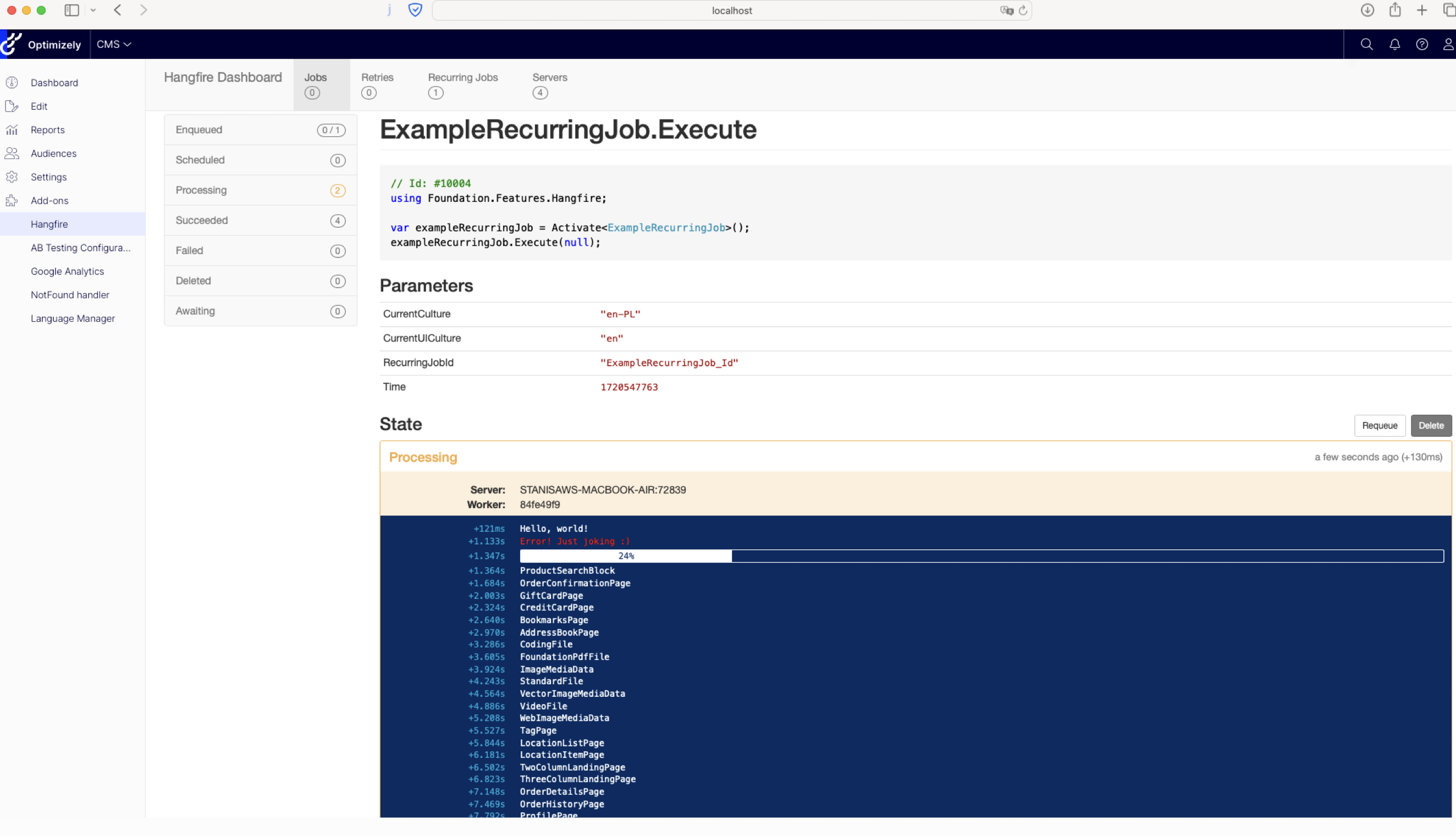
この例を終えた後に空のHangfire UIしか見られないのは残念です。簡単な繰り返しジョブを追加して、 Hangfire.Console 機能。Hangfireジョブの詳細については、ドキュメントを参照してください。 ここ。
using Hangfire.Console;
using Hangfire.Server;
using System.Threading;

namespace Foundation.Features.Hangfire;

public class ExampleRecurringJob
{
    private readonly IContentTypeRepository _contentTypeRepository;


    public ExampleRecurringJob(IContentTypeRepository contentTypeRepository)
    {
        _contentTypeRepository = contentTypeRepository;
    }

    public void Execute(PerformContext context)
    {
        context.WriteLine("Hello, world!");
        Thread.Sleep(TimeSpan.FromSeconds(1));

        context.SetTextColor(ConsoleTextColor.Red);
        context.WriteLine("Error! Just joking :)");
        Thread.Sleep(TimeSpan.FromSeconds(0.2));
        context.ResetTextColor();

        var bar = context.WriteProgressBar();
        foreach (var contentType in _contentTypeRepository.List().WithProgress(bar))
        {
            context.WriteLine(contentType.Name);
            Thread.Sleep(TimeSpan.FromSeconds(0.3));
        }
    }
}
新しいクラスがすべて作成されたので、Hangfireの設定を追加する必要があります。 Startup.cs。
            // Add Hangfire services.
            services.AddHangfire(configuration => configuration
                .SetDataCompatibilityLevel(CompatibilityLevel.Version_180)
                .UseSimpleAssemblyNameTypeSerializer()
                .UseRecommendedSerializerSettings()
                .UseSqlServerStorage(_configuration.GetConnectionString("EcfSqlConnection"))
                .UseConsole());

            // Add the processing server as IHostedService
            services.AddHangfireServer();
この構成も同様です。
            app.UseEndpoints(endpoints =>
            {
                endpoints.MapControllerRoute(name: "Default", pattern: "{controller}/{action}/{id?}");
                endpoints.MapControllers();
                endpoints.MapRazorPages();
                endpoints.MapContent();
                endpoints.MapHangfireDashboard();
            });

            var dashboardOptions = new DashboardOptions
            {
                Authorization = new[]
                {
                    new HangfireAuthorizationFilter()
                },
                AppPath = null
            };
            // Order of middlewares is important! Add it after Authentication and Authorization in order to have a user in the context.
            app.UseHangfireDashboard("/episerver/backoffice/Plugins/hangfire", dashboardOptions);

            RecurringJob.AddOrUpdateExampleRecurringJob>(nameof(ExampleRecurringJob) + "_Id", x => x.Execute(null), Cron.Daily);
これですべて完了したので、アプリケーションをビルドして実行できます。CMS バック オフィスにログインしたら、次のようにします。
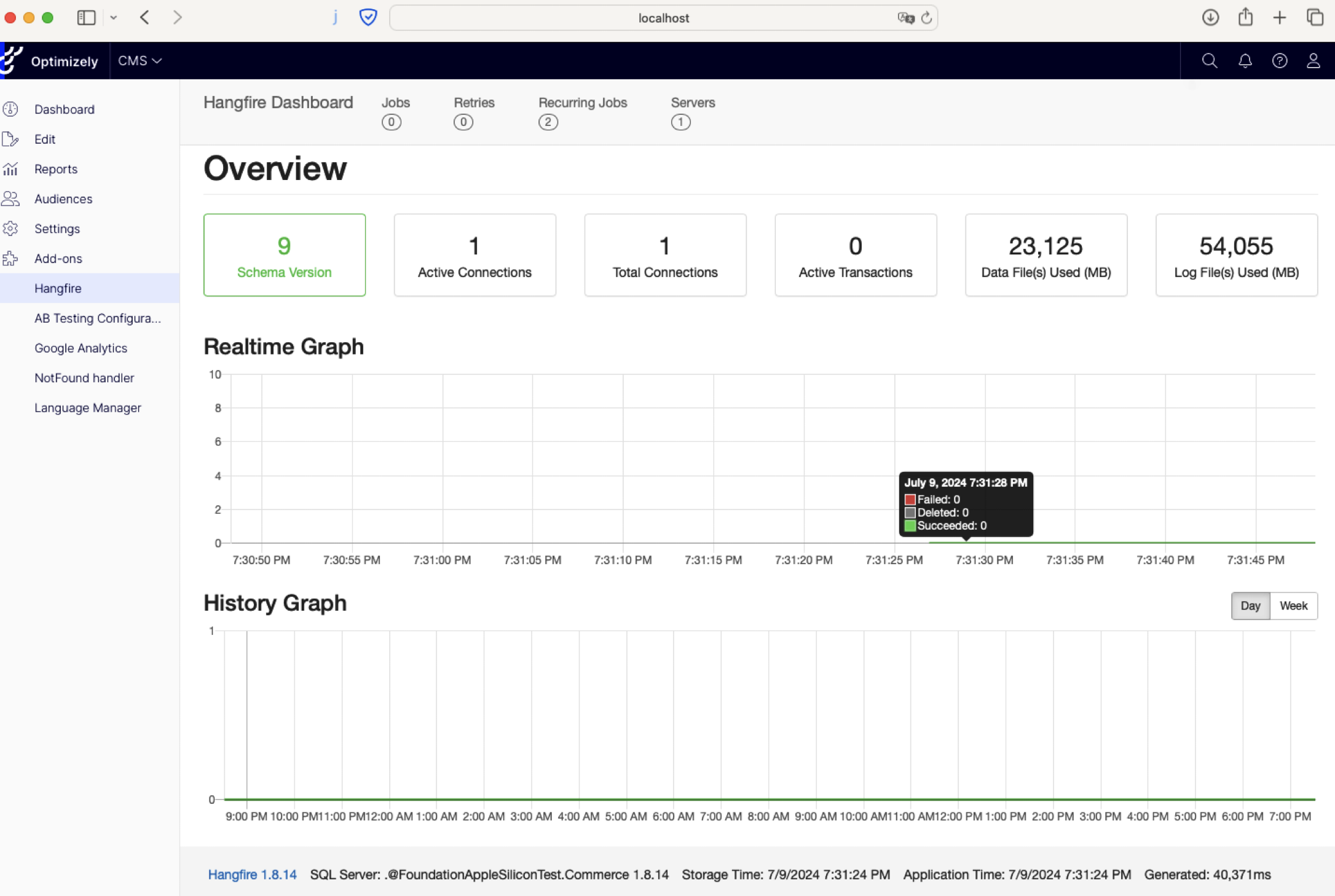
作成されたサンプルジョブに移動します。実行の詳細の定期ジョブタブで手動で実行するようにトリガーした後、ライブコンソールエクスペリエンスを示す同様のビューが表示されます。
この投稿からのすべてのコード変更は以下で確認できます。 Github Foundation フォーク プル リクエスト。
#EpiserverOptimizely #CMS #に #Hangfire #を追加する