1720224538
2024-07-05 12:21:40
Optimizely Graph では、GraphQL を使用して高度な方法でデータをクエリできます。ファセットと検索フレーズを使用してデータをクエリすることは、コマース サイトの「製品リスト ページ」を構築するときに非常に役立ちます。NextJs を使用して、Customizable Commerce の製品リスト ページを作成する方法について説明します。
このチュートリアルでは、Foundationのサンプルサイトを使用します。Foundationの設定方法の詳細については、 https://github.com/episerver/Foundation
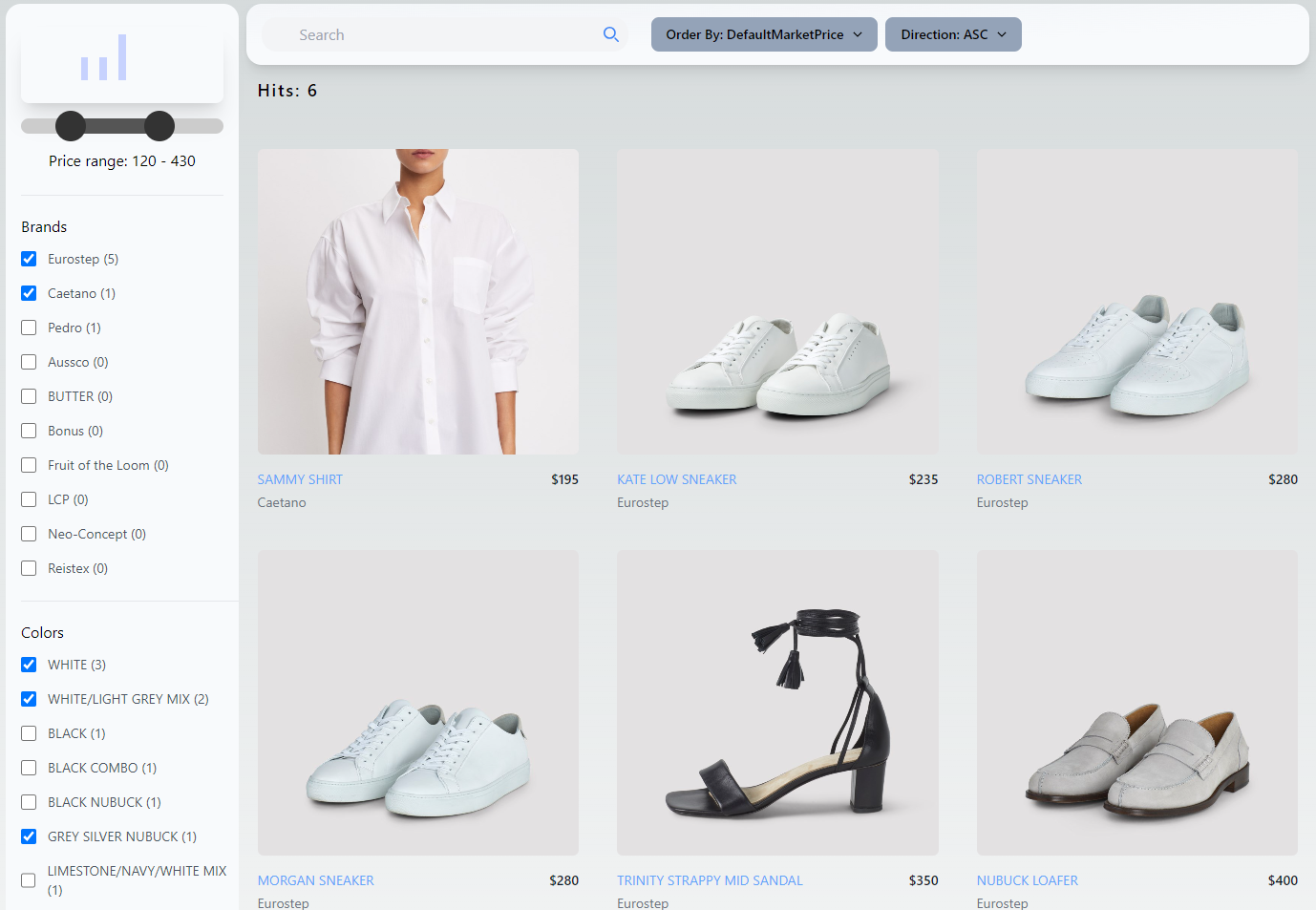
ブランド、サイズ、色、価格で製品をフィルタリングできる NextJs アプリを作成します。また、「セマンティック検索」と通常の関連性検索を使用して検索することもできます。
注: この例の「製品リスト ページ」のテンプレートとスタイル設定は、スタイル設定に関する知識がほとんどない人 (私) によって作成されました。これは、テンプレートを作成する方法を示す単なる例です。
Foundationサイトの設定から始め、サイトが正常に動作していることを確認します。また、編集/管理者モードでログインできることを確認してください。Foundationサイトの詳細については、以下を参照してください。 https://github.com/episerver/Foundation
Foundation サイトから Graph にコンテンツを送信するには、Graph アカウントが必要です。ただし、Graph アカウントを持っていなくても心配はいりません。Foundation コンテンツを含む Graph アカウントを用意していますので、アカウントを使用してアプリケーションの作成をテストできます。
注: Graph アカウントをお持ちでない場合は、この部分 (「Foundation サイトで Graph を有効にする」) をスキップできます。代わりに、次のセクション「GraphQL クエリの作成」に進み、次の singleKey を使用できます: 5m4F2pBpXPWehc3QGqFfvohgNtgYxHQOxfmKsnqhRYDpZTBU
Graphにコンテンツをプッシュするためのパッケージをインストールする
次の NuGet パッケージをインストールします: Optimizely.ContentGraph.Cms
Optimizely.ContentGraph.CmsGraphアカウントを設定する
appSettings.json に次のセクションを追加します。
  "Optimizely": {
    "ContentGraph": {
      "GatewayAddress": "https://cg.optimizely.com",
      "AppKey": "{your-app-key}",
      "Secret": "{your-secret}",
      "SingleKey": "{your-single-key}",
      "AllowSendingLog": "true"
    }
  }
Startup.cs の “ConfigureServices” メソッドに次のコードを追加します。
            services.AddContentGraph(x =>
            {
                x.IncludeInheritanceInContentType = true;
                x.PreventFieldCollision = true;
            });
「GraphCommerceIntegration」プロジェクトへの参照を追加します
1. リポジトリGraphCommerceIntegrationをクローンする
https://github.com/jonasbergqvist/GraphCommerceIntegration.git2. プロジェクトを追加します。GraphCommerceIntegration.csproj「」の下にあります。「GraphCommerceIntegration」フォルダーを Foundation ソリューションに追加します。
3. Foundation サイトのプロジェクト参照を「GraphCommerceIntegration」に追加します。
4. Foundationサイトをコンパイルして起動する
注: リポジトリには
- スケジュールされたジョブにカタログ コンテンツを含めるクラス (カタログ コンテンツのイベント同期はプロジェクトを参照せずに機能します)
- カタログ コンテンツに構成されているすべての言語を含むクラス。
- 価格が変更されたときにイベント同期をトリガーするクラス。
- 価格ベースクラス。製品やバリエーションをグラフにプッシュするときに価格情報を簡単に含めることができます。
- アセットベースクラス。Graphにプッシュされたときに、製品やバリエーションのアセット情報を簡単に追加できます。
- バリエーションから関連製品へのデータを簡単に集計できる集計基本クラス。
注: 詳細については、READMEを参照してください。 https://github.com/jonasbergqvist/GraphCommerceIntegration/tree/main
商品とバリエーションにデフォルト価格を追加する
製品とバリエーションのデフォルト マーケットにデフォルト価格を含めるには、次のクラスを Foundation サイトに追加します。
    [ServiceConfiguration(typeof(IContentApiModelProperty), Lifecycle = ServiceInstanceScope.Singleton)]
    public class DefaultPriceContentApiModel : ContentApiModelPriceBase
    {
        private readonly ICurrentMarket _currentMarketService;

        public DefaultPriceContentApiModel(
            ContentTypeModelRepository contentTypeModelRepository,
            IContentLoader contentLoader,
            IPriceService priceService,
            ICurrentMarket currentMarketService)
            : base(contentTypeModelRepository, contentLoader, priceService)
        {
            _currentMarketService = currentMarketService;
        }

        public override string Name => "DefaultMarketPrice";

        protected override IMarket GetMarket()
        {
            return _currentMarketService.GetCurrentMarket();
        }
    }
注: 製品は、関連するバリエーションから最も低い価格を取得します。
バリエーションコンテンツから製品コンテンツへのデータの集計
コンテンツがグラフにプッシュされるときに色とサイズを含めるには、次の 2 つのクラスを追加します。
色
    [ServiceConfiguration(typeof(IContentApiModelProperty), Lifecycle = ServiceInstanceScope.Singleton)]
    public class ColorContentApiModel : ProductAggregationContentApiModelBase
    {
        public ColorContentApiModel(ContentTypeModelRepository contentTypeModelRepository, IContentLoader contentLoader)
            : base(contentTypeModelRepository, contentLoader)
        {
        }

        public override string Name => "Colors";

        protected override Expression> VariationProperty => (x) => x.Color;
    }
サイズ
    [ServiceConfiguration(typeof(IContentApiModelProperty), Lifecycle = ServiceInstanceScope.Singleton)]
    public class ColorContentApiModel : ProductAggregationContentApiModelBase
    {
        public ColorContentApiModel(ContentTypeModelRepository contentTypeModelRepository, IContentLoader contentLoader)
            : base(contentTypeModelRepository, contentLoader)
        {
        }

        public override string Name => "Colors";

        protected override Expression> VariationProperty => (x) => x.Color;
    }
デフォルトの製品アセットをグラフにプッシュする
グラフにプッシュされたときに、デフォルトの製品アセットのURLを製品に含めるために、次のクラスを追加します。
    [ServiceConfiguration(typeof(IContentApiModelProperty), Lifecycle = ServiceInstanceScope.Singleton)]
    public class DefaultImageUrlContentApiModel : CommerceAssetApiModelBase
    {
        public DefaultImageUrlContentApiModel(ContentTypeModelRepository contentTypeModelRepository, IContentLoader contentLoader, IUrlResolver urlResolver)
            : base(contentTypeModelRepository, contentLoader, urlResolver)
        {
        }

        public override string Name => "DefaultImageUrl";

        public override string NoValue => string.Empty;

        protected override string GetAssets(IEnumerable commerceMediaItems)
        {
            foreach(CommerceMedia media in commerceMediaItems.OrderBy(x => x.SortOrder))
            {
                if (ContentLoader.TryGet(media.AssetLink, out var contentMedia))
                {
                    return GetUrl(media);
                }
            }

            return NoValue;
        }
    }
Foundationサイトのデータを使用してGraphQLクエリをいくつか作成します。URLを使用してオンラインIDEを使用できます。 https://cg.optimizely.com/app/graphiql?auth={あなたの単一キー}独自の Graph アカウントをお持ちでない場合は、サンプル アカウントを使用できます。 https://cg.optimizely.com/app/graphiql?auth=5m4F2pBpXPWehc3QGqFfvohgNtgYxHQOxfmKsnqhRYDpZTBU
商品リストページを作成する
製品リストページを処理するには、次のクエリ (フラグメントを含む) を作成します。
fragment GenericProductTeaser on GenericProduct {
  Name
  Code
  DefaultMarketPrice
  Brand
  DefaultImageUrl
}

query ProductListing(
  $languages: [Locales] = en
  $searchText: String,
  $brands: [String!],
  $sizes: [String!],
  $colors: [String!],
  $minPrice: Float,
  $maxPrice: Float,
  $skip: Int = 0,
  $limit: Int = 10,
  $order: GenericProductOrderByInput = {
    _ranking: SEMANTIC,
  }) {
    GenericProduct(
      locale: $languages
      where:{
        _or:[
        {
          _fulltext: {
              match: $searchText
          }
        },
        {
          Name: {
            match: $searchText
            boost: 5
          }
        }
        ]
        DefaultMarketPrice: {
            gte: $minPrice
            lte: $maxPrice
        }
      }
      skip: $skip,
      limit: $limit
      orderBy: $order
  	) {
      total
      items {
          ...GenericProductTeaser
      }
      facets {
          Brand(filters: $brands) {
              name
              count
          }
          Sizes(filters:$sizes) {
              name
              count
          }
          Colors(filters:$colors) {
              name
              count
          }
          DefaultMarketPrice(
            ranges: [
              { to: 50 },
              { from: 51, to: 100 },
              { from: 101, to: 150 },
              { from: 151, to: 200 },
              { from: 201, to: 250 },
              { from: 251, to: 300 },
              { from: 301, to: 350 },
              { from: 351, to: 400 },
              { from: 401, to: 450 },
              { from: 451, to: 500 },
              { from: 501 },
            ]) {
              name
              count
           }
      	}
    }
}
クエリを一つずつ見ていきましょう
ジェネリック製品ティーザー
フラグメントは、再利用可能な部分クエリです。ブロックとして考えることができます。ここでは、「GenericProductTeaser」(好きなように呼び出せます) というフラグメントを作成し、これが「GenericProduct」タイプを処理します。「GenericProduct」は Foundation サイトのコンテンツ タイプで、Graph にプッシュされています。これで、「GenericProduct」タイプから返すフィールド (プロパティ) を選択できるようになりました。Ctrl キーを押しながらスペース キー (Ctrl + スペース) をクリックすると、インテリジェンスが利用できます。
fragment GenericProductTeaser on GenericProduct {
  Name
  Code
  DefaultMarketPrice
  Brand
  DefaultImageUrl
}
クエリ名と変数
クエリに「ProductListing」という名前を付けましたが、任意の名前を付けることもできます。また、クエリにいくつかの変数を追加したので、さまざまなオプションを使用してクエリを実行できます。GraphQL クエリは、お気に入りのプログラミング言語のメソッドと考えることができます。クエリに名前を付け、好きな変数を追加します。その後、クエリ内で変数を使用できます。
- $languages: コンテンツを取得する言語。複数の言語を指定できます。「Locales」の値は、コマース サイトで設定した言語です。
- $searchText: 通常検索またはセマンティック検索を実行するための検索フレーズ
- $brands: 選択したブランド
- $sizes: 選択したサイズ
- $minPrice: 製品を取得するための最低デフォルト価格
- $hightPrice: 製品を取得するためのデフォルトの最高価格
- $skip: 結果の先頭から何項目スキップするか
- $limit: 取得する結果項目の数
- $order: コンテンツを受信する順序。
query ProductListing(
  $languages: [Locales] = en
  $searchText: String,
  $brands: [String!],
  $sizes: [String!],
  $colors: [String!],
  $minPrice: Float,
  $maxPrice: Float,
  $skip: Int = 0,
  $limit: Int = 10,
  $order: GenericProductOrderByInput = {
    _ranking: SEMANTIC,
  })
ジェネリック製品
コンテンツ タイプ「GenericProduct」を使用して、すべての「GenericProduct」アイテムをクエリします。これにより、タイプが「GenericProduct」であるか、「GenericProduct」から継承されているすべてのコンテンツがクエリされます。
GenericProduct(ロケール
クエリする言語には、変数 $languages を使用します。クエリでは、$languages のデフォルト値は「en」に設定されています。
locale: $languagesどこ
コンテンツのフィルタリング。フィルタリングは値を持つ変数に対してのみ行われます。
「_or」ステートメントを使用して、変数「$searchText」をすべての検索可能なプロパティ (_fullText) および「Name」と照合します。「Name」に一致する結果を 5 倍にします。
また、$minPrice 変数と $maxPrice 変数に基づいて、「デフォルトの市場価格」をフィルタリングします。
      where:{
        _or:[
        {
          _fulltext: {
              match: $searchText
          }
        },
        {
          Name: {
            match: $searchText
            boost: 5
          }
        }
        ]
        DefaultMarketPrice: {
            gte: $minPrice
            lte: $maxPrice
        }
      }
スキップと制限
上から $skip 個のアイテムをスキップし、結果に $limit 個のアイテムを含めます。
      skip: $skip,
      limit: $limit
注文方法
受信した $order 変数に基づいて結果を並べ替えます。デフォルトでは、「セマンティック検索」ランキング (クエリのデフォルトの変数値) に基づいて結果を並べ替えます。
orderBy: $order合計
クエリの結果の合計数
totalアイテム
アイテムは選択されたフィールド(プロパティ)を取得するために使用されています。フラグメント「GenericProductTeaser」を参照して、フラグメントで指定されたフィールド(プロパティ)を取得します。
items {
          ...GenericProductTeaser
      }
ファセット
ファセットは特定のフィールド (プロパティ) のデータを集約し、一意の値とその一意の値の「カウント」を提供します。
「ブランド」、「サイズ」、「色」、および「DefaultMarketPrice」のファセットを作成しています。最初の 3 つのファセットは単純なファセットで、各ファセットの「フィルター」パラメータを使用して、ユーザーが選択した値を指定します。最後のファセットは範囲ファセットで、さまざまな価格間隔の数を指定します。
      facets {
          Brand(filters: $brands) {
              name
              count
          }
          Sizes(filters:$sizes) {
              name
              count
          }
          Colors(filters:$colors) {
              name
              count
          }
          DefaultMarketPrice(
            ranges: [
              { to: 50 },
              { from: 51, to: 100 },
              { from: 101, to: 150 },
              { from: 151, to: 200 },
              { from: 201, to: 250 },
              { from: 251, to: 300 },
              { from: 301, to: 350 },
              { from: 351, to: 400 },
              { from: 401, to: 450 },
              { from: 451, to: 500 },
              { from: 501 },
            ]) {
              name
              count
          	}
      	}
製品詳細ページを作成する
また、「コード」を使用して商品を取得する商品詳細ページも作成します。
query ProductDetail(
  $locale: Locales = en
  $code: String!
) {
  GenericProduct(
    locale: [$locale]
    where:{
      Code: { eq: $code }
    }
    limit:1
  ) {
    items {
      Name
      Code
      DefaultImageUrl
      DefaultMarketPrice
      Brand
      LongDescription
    }
  }
}
NextJs アプリをゼロから作成します。最終結果がどうなるかを確認したい場合は、次のサイトをご覧ください。 https://github.com/jonasbergqvist/GraphCommerceIntegration/tree/main/graph-commerce-example-app
新しいNextJsアプリを作成する
npx create-next-app@latest- タイプスクリプト: はい
- ESLint: はい
- Tailwind CSS: はい
- src/ディレクトリ: はい
- アプリルーター: いいえ
- defaultimport エイリアスをカスタマイズ: いいえ
依存関係を追加する
package.jsonを開いて以下を追加します
devDependencies内
    "@graphql-codegen/cli": "^5.0.2",
    "@graphql-codegen/client-preset": "^4.2.6",
    "@parcel/watcher": "^2.4.1",
依存関係
    "@apollo/client": "^3.10.4",
    "graphql": "^16.8.1",
    "html-react-parser": "^5.1.10",
    "next-range-slider": "^1.0.5",
スクリプトでは
"codegen": "graphql-codegen --watch",すべての依存関係をインストールする
次のコマンドを実行して、すべての依存関係をインストールします。
npm installGraphQL Codegen を構成する
GraphQL codegenは、強く型付けされたクエリとクエリ結果を提供する優れたツールです。アプリケーションでGraphのアカウントを使用するようにCodegenを構成する必要があります。
codegen.tsを作成する
アプリケーションのルートフォルダの下に「codegen.ts」という名前で新しいファイルを作成し、次の内容を追加します。
import { CodegenConfig  } from '@graphql-codegen/cli'

const config : CodegenConfig = {
    schema: "https://cg.optimizely.com/content/v2?auth={your-single-key}",
    documents: ["src/**/*.{ts,tsx}"],
    ignoreNoDocuments: true,
    generates: {
        './src/graphql/': {
            preset: 'client',
            plugins: [],
        }
    }
}

export default config
{your-single-key}をあなたのシングルキーに変更してください。Graphアカウントをお持ちでない場合は、
5m4F2pBpXPWehc3QGqFfvohgNtgYxHQOxfmKsnqhRYDpZTBU
コード生成ウォッチャーを起動する
次のコマンドを実行して、GraphQL codegen がプロジェクト内の GraphQL クエリを継続的にチェックできるようにします。
yarn codegen1ページ編集をサポートするApollo Clientを使用する
Apollo Client は、GraphQL サポートが組み込まれた多くのクライアントの 1 つです。この例では Apollo Client を使用しますが、独自のプロジェクトでは任意のクライアントを使用できます。
apolloClient.tsx を追加
「src」フォルダの下に「apolloClient.tsx」という名前の新しいファイルを追加します。
import { ApolloClient, createHttpLink, InMemoryCache } from '@apollo/client';
import { setContext } from '@apollo/client/link/context';

let client: ApolloClient | undefined = undefined;

if (typeof window !== "undefined" && window.location !== undefined) {
    const queryString = window?.location?.search;
    const urlParams = new URLSearchParams(queryString);
    const preview_token = urlParams.get('preview_token') ?? undefined;

    if (preview_token) {
        const httpLink = createHttpLink({
            uri: 'https://cg.optimizely.com/content/v2',
        });

        const authLink = setContext((_, { headers }) => {
            return {
                headers: {
                    ...headers,
                    authorization: `Bearer ${preview_token}`
                }
            };
        });

        client = new ApolloClient({
            link: authLink.concat(httpLink),
            cache: new InMemoryCache()
        });

        const communicationScript = document.createElement('script');
        communicationScript.src = `{url-to-your-foundation-site}/Util/javascript/communicationinjector.js`;
        communicationScript.setAttribute('data-nscript', 'afterInteractive')
        document.body.appendChild(communicationScript);
    }
}

if (client === undefined) {
    const httpLink = createHttpLink({
        uri: 'https://cg.optimizely.com/content/v2?auth={your-single-key}',
    });

    const authLink = setContext((_, { headers }) => {
        return {
            headers: {
                ...headers
            }
        };
    });

    client = new ApolloClient({
        link: authLink.concat(httpLink),
        cache: new InMemoryCache()
    });
}

export default client;
このファイルでは次の 2 つの点を変更する必要があります。
- {url-to-your-foundation-site}をFoundationサイトを実行するURLに変更します。例: https://localhost:44397
- {your-single-key} を Graph アカウントのシングルキーに置き換えます。Graph アカウントがない場合は 5m4F2pBpXPWehc3QGqFfvohgNtgYxHQOxfmKsnqhRYDpZTBU を使用してください。
_app.tsxを更新してApolloクライアントを使用する
src/pages の下の_app.tsx を次のように更新します。
import "@/styles/globals.css";
import { ApolloProvider } from "@apollo/client";
import type { AppProps } from "next/app";
import client from '../apolloClient';

export default function App({ Component, pageProps }: AppProps) {
  return (


  );
}
GenericProductTeaserComponent.tsx を作成する
「src」の下に「components」という名前のフォルダーを追加し、「components」フォルダーに「GenericProductTeaserComponent.tsx」という名前のファイルを追加します。
import { FragmentType, graphql, useFragment } from "@/graphql"
import { Dispatch, FC, SetStateAction, useState } from "react";
export const GenericProductTeaserFragment = graphql(/* GraphQL */ `
fragment GenericProductTeaser on GenericProduct {
Name
Code
DefaultMarketPrice
Brand
DefaultImageUrl
}
`)
interface GenericProductTeaserProps {
GenericProductTeaser: FragmentType
setSelectedCode: Dispatch>;
setShowModal: Dispatch>;
}
const GenericProductTeaserComponent: FC = ({ GenericProductTeaser, setSelectedCode, setShowModal}) => {
const setSelected = (event: any) => {
if(event?.target?.id) {
setSelectedCode(event?.target?.id)
setShowModal(true)
}
}
const item = useFragment(GenericProductTeaserFragment, GenericProductTeaser)
const imageUrl="https://localhost:44397" + item.DefaultImageUrl
return (

${item.DefaultMarketPrice}
)
}
export default GenericProductTeaserComponent GraphQL フラグメント GenericProductTeaser がファイルの先頭に追加されます。このクエリは、その後、「GenericProductTeaserComponent」で使用されます。フラグメントの GenericProduct に存在するフィールド (プロパティ) を追加することができます。フィールド/プロパティを追加してファイルを保存すると、数秒後に GenericProductTeaserComponent で使用できるようになります。
_scoreを追加してファイルを保存するテスト
    fragment GenericProductTeaser on GenericProduct {
        Name
        Code
        DefaultMarketPrice
        Brand
        DefaultImageUrl
        _score
    }
ファイルを保存してから数秒後に、GenericProductTeaserComponent 内の「item」で _score が利用できるようになります。
サイトを構築してみる
次のコマンドを実行して、すべてが機能していることを確認します。
npm run buildProductListingComponent..tsx を作成する
商品リストページのGraphQLクエリを使用して、「コンポーネント」の下にProductListingComponent.tsxを作成します。
import React, { FC, useState } from 'react'
import { useQuery } from '@apollo/client'
import { graphql } from '@/graphql'
import GenericProductTeaserComponent from './GenericProductTeaserComponent'
export const ProductListing = graphql(/* GraphQL */ `
query ProductListing(
$languages: [Locales] = en
$searchText: String,
$brands: [String!],
$sizes: [String!],
$colors: [String!],
$minPrice: Float,
$maxPrice: Float,
$skip: Int = 0,
$limit: Int = 10,
$order: GenericProductOrderByInput = {
_ranking: SEMANTIC,
DefaultMarketPrice: ASC
}
)
{
GenericProduct(
locale: $languages
where:{
_or:[
{
_fulltext: {
match: $searchText
}
},
{
Name: {
match: $searchText
boost: 20
}
}
]
DefaultMarketPrice: {
gte: $minPrice
lte: $maxPrice
}
}
skip: $skip,
limit: $limit
orderBy: $order
) {
total
items {
...GenericProductTeaser
}
facets {
Brand(filters: $brands) {
name
count
}
Sizes(filters:$sizes) {
name
count
}
Colors(filters:$colors) {
name
count
}
DefaultMarketPrice(ranges: [
{ to: 50 },
{ from: 51, to: 100 },
{ from: 101, to: 150 },
{ from: 151, to: 200 },
{ from: 201, to: 250 },
{ from: 251, to: 300 },
{ from: 301, to: 350 },
{ from: 351, to: 400 },
{ from: 401, to: 450 },
{ from: 451, to: 500 },
{ from: 501 },
]) {
name
count
}
}
}
}
`)
const ProductListingComponent: FC = () => {
const [showModal, setShowModal] = useState(false);
const [selectedCode, setSelectedCode] = useState(() => '');
const { data } = useQuery(ProductListing, {
variables: {
}
})
return (
Hits: { data?.GenericProduct?.total }
{ data?.GenericProduct?.items?.map((item, index) => {
return
)
}
export default ProductListingComponentindex.tsx を更新
src/pagesフォルダのindex.tsxを以下のように更新します。
import ProductListingComponent from "@/components/ProductListingComponent";
export default function Home() {
return (
画像を機能させるために財団のウェブサイトを立ち上げる
Foundation Web サイトがまだ実行されていない場合は起動します。NextJs アプリで画像を動作させるには、これを実行する必要があります。その理由は、Graph は Commerce システム内にある実際の画像へのリンクのみを保存するためです。Foundation サイトを起動しない場合は、画像以外 (壊れた画像が表示されます) はすべて動作します。
NextJsアプリを起動する
npm run dev閲覧時にいくつかの商品が表示されるようになりました
http://localhost:3000/ProductDetailComponent.tsx を作成する
「components」の下に ProductDetailComponent.tsx という名前のファイルを作成します。
import React, { Dispatch, FC, SetStateAction, useEffect, useState } from 'react'
import { useQuery } from '@apollo/client'
import { graphql } from '@/graphql'
import parse from 'html-react-parser';
export const ProductDetail = graphql(/* GraphQL */ `
query ProductDetail(
$locale: Locales = en
$code: String!
) {
GenericProduct(
locale: [$locale]
where:{
Code: { eq: $code }
}
limit:1
) {
items {
Name
Code
DefaultImageUrl
DefaultMarketPrice
Brand
LongDescription
}
}
}
`)
interface ProductDetailProps {
code: string
setOpen: Dispatch>;
}
const ProductDetailComponent: FC = ({code, setOpen}) => {
const { data } = useQuery(ProductDetail, {
variables: {
code
}
})
const item = data?.GenericProduct?.items![0]
const imageUrl="{url-to-your-foundation-site}" + item?.DefaultImageUrl
return (
{/*content*/}
{/*header*/}
{ item?.Name }
{/*body*/}
{ parse(item?.LongDescription ?? '')}
From: {item?.Brand}
{/*footer*/}
)
}
export default ProductDetailComponent {url-to-your-foundation-site}をFoundationサイトを実行するURLに変更します。例: https://localhost:44397
必要に応じて製品の詳細を読み込むために ProductListingComponent を更新します
ProductListingComponent.tsx を更新して、画像または名前をクリックしたときにモーダルで製品詳細コンポーネントを開くようにします。
前に以下を追加
{
showModal ? (
ProductDetailComponentをインポートします
import ProductDetailComponent from './ProductDetailComponent'ProductListingComponentは次のようになります。
import React, { FC, useState } from 'react'
import { useQuery } from '@apollo/client'
import { graphql } from '@/graphql'
import GenericProductTeaserComponent from './GenericProductTeaserComponent'
import ProductDetailComponent from './ProductDetailComponent'
export const ProductListing = graphql(/* GraphQL */ `
query ProductListing(
$languages: [Locales] = en
$searchText: String,
$brands: [String!],
$sizes: [String!],
$colors: [String!],
$minPrice: Float,
$maxPrice: Float,
$skip: Int = 0,
$limit: Int = 10,
$order: GenericProductOrderByInput = {
_ranking: SEMANTIC,
DefaultMarketPrice: ASC
}
)
{
GenericProduct(
locale: $languages
where:{
_or:[
{
_fulltext: {
match: $searchText
}
},
{
Name: {
match: $searchText
boost: 20
}
}
]
DefaultMarketPrice: {
gte: $minPrice
lte: $maxPrice
}
}
skip: $skip,
limit: $limit
orderBy: $order
) {
total
items {
...GenericProductTeaser
}
facets {
Brand(filters: $brands) {
name
count
}
Sizes(filters:$sizes) {
name
count
}
Colors(filters:$colors) {
name
count
}
DefaultMarketPrice(ranges: [
{ to: 50 },
{ from: 51, to: 100 },
{ from: 101, to: 150 },
{ from: 151, to: 200 },
{ from: 201, to: 250 },
{ from: 251, to: 300 },
{ from: 301, to: 350 },
{ from: 351, to: 400 },
{ from: 401, to: 450 },
{ from: 451, to: 500 },
{ from: 501 },
]) {
name
count
}
}
}
}
`)
const ProductListingComponent: FC = () => {
const [showModal, setShowModal] = useState(false);
const [selectedCode, setSelectedCode] = useState(() => '');
const { data } = useQuery(ProductListing, {
variables: {
}
})
return (
Hits: { data?.GenericProduct?.total }
{ data?.GenericProduct?.items?.map((item, index) => {
return
{
showModal ? (
)
}
export default ProductListingComponentアプリをテストする
画像をクリックして製品の詳細を読み込んでください
TermFacetComponent.tsx を作成する
次のコードを使用して、「components」フォルダに TermFacetComponent.tsx を作成します。
import { StringFacet } from "@/graphql/graphql"
import { Dispatch, FC, SetStateAction } from "react"

interface TermFacetProps {
    headingText: string
    values: string[]
    facet: StringFacet[] | null
    setValues: Dispatch>;
}

const TermFacetComponent: FC = ({ headingText, values, facet, setValues }) => {

    const handleSelection = (event: React.ChangeEvent) => {
        let localValues = Array.from(values)
        if(event.target.checked) {
            localValues.push(event.target.id);
        }
        else {
            localValues = localValues.filter(x => x !== event.target.id);
        }
        setValues(localValues);
    };

    return (

    )
}

export default TermFacetComponent
用語ファセットを使用するために ProductListingComponent.tsx を更新します
ProductListingComponent.tsxを次のように更新します。
import React, { FC, useEffect, useState } from 'react'
import { useQuery } from '@apollo/client'
import { graphql } from '@/graphql'
import GenericProductTeaserComponent from './GenericProductTeaserComponent'
import ProductDetailComponent from './ProductDetailComponent'
import TermFacetComponent from './TermFacetComponent'
import { StringFacet } from '@/graphql/graphql'
export const ProductListing = graphql(/* GraphQL */ `
query ProductListing(
$languages: [Locales] = en
$searchText: String,
$brands: [String!],
$sizes: [String!],
$colors: [String!],
$minPrice: Float,
$maxPrice: Float,
$skip: Int = 0,
$limit: Int = 10,
$order: GenericProductOrderByInput = {
_ranking: SEMANTIC,
DefaultMarketPrice: ASC
}
)
{
GenericProduct(
locale: $languages
where:{
_or:[
{
_fulltext: {
match: $searchText
}
},
{
Name: {
match: $searchText
boost: 20
}
}
]
DefaultMarketPrice: {
gte: $minPrice
lte: $maxPrice
}
}
skip: $skip,
limit: $limit
orderBy: $order
) {
total
items {
...GenericProductTeaser
}
facets {
Brand(filters: $brands) {
name
count
}
Sizes(filters:$sizes) {
name
count
}
Colors(filters:$colors) {
name
count
}
DefaultMarketPrice(ranges: [
{ to: 50 },
{ from: 51, to: 100 },
{ from: 101, to: 150 },
{ from: 151, to: 200 },
{ from: 201, to: 250 },
{ from: 251, to: 300 },
{ from: 301, to: 350 },
{ from: 351, to: 400 },
{ from: 401, to: 450 },
{ from: 451, to: 500 },
{ from: 501 },
]) {
name
count
}
}
}
}
`)
const ProductListingComponent: FC = () => {
const [brands, setBrands] = useState(() => new Array());
const [brandFacet, setBrandFacet] = useState(() => new Array())
const [colors, setColors] = useState(() => new Array());
const [colorFacet, setColorFacet] = useState(() => new Array())
const [sizes, setSizes] = useState(() => new Array());
const [sizeFacet, setSizeFacet] = useState(() => new Array())
const [showModal, setShowModal] = useState(false);
const [selectedCode, setSelectedCode] = useState(() => '');
const { data } = useQuery(ProductListing, {
variables: {
brands,
colors,
sizes,
}
})
function facetOptionChanged(fasetQueryResult: StringFacet[], faset: StringFacet[]): boolean {
if(fasetQueryResult.length != faset.length) {
return true
}
for (let i = 0; i {
if(data?.GenericProduct?.facets?.Brand != undefined && data?.GenericProduct?.facets?.Brand) {
if(facetOptionChanged(data?.GenericProduct?.facets?.Brand as StringFacet[], brandFacet)) {
setBrandFacet(data.GenericProduct.facets?.Brand as StringFacet[])
}
}
if(data?.GenericProduct?.facets?.Colors != undefined && data?.GenericProduct?.facets?.Colors) {
if(facetOptionChanged(data?.GenericProduct?.facets?.Colors as StringFacet[], colorFacet)) {
setColorFacet(data.GenericProduct.facets?.Colors as StringFacet[])
}
}
if(data?.GenericProduct?.facets?.Sizes != undefined && data?.GenericProduct?.facets?.Sizes) {
if(facetOptionChanged(data?.GenericProduct?.facets?.Sizes as StringFacet[], sizeFacet)) {
setSizeFacet(data.GenericProduct.facets?.Sizes as StringFacet[])
}
}
}, [brandFacet, colorFacet, sizeFacet, data?.GenericProduct?.facets]);
return (
Hits: { data?.GenericProduct?.total }
{ data?.GenericProduct?.items?.map((item, index) => {
return
{
showModal ? (
)
}
export default ProductListingComponent アプリ内のファセットをテストする
さまざまなファセット値をクリックしてテストし、選択に基づいて正しい製品が表示されることを確認します。
RangeFacetComponent.tsx を作成する
次のコードを使用して、「コンポーネント」の下に RangeFacetComponent.tsx を作成します。
import { NumberFacet } from "@/graphql/graphql"
import React, { Dispatch, FC, SetStateAction, useEffect, useState } from "react";
import { RangeSlider } from 'next-range-slider';
import 'next-range-slider/dist/main.css';

interface RangeFacetProps {
    headingText: string
    minValue: number
    maxValue: number
    currentLowValue: number
    currentHighValue: number
    facet: NumberFacet[] | null
    setLowValue: Dispatch>;
    setHighValue: Dispatch>;
}

const RangeFacetComponent: FC = ({ headingText, minValue, maxValue, currentLowValue, currentHighValue, facet, setLowValue, setHighValue }) => {

    const [localLowValue, setLocalLowValue] = useState(() => minValue);
    const [localHighValue, setHighLocalValue] = useState(() => maxValue)

    useEffect(() => {
        const delayDebounceFn = setTimeout(() => {
          setLowValue(localLowValue)
          setHighValue(localHighValue)
        }, 500)

        return () => clearTimeout(delayDebounceFn)
      }, [localLowValue, localHighValue, setLowValue, setHighValue])

      const facetValues = Array.from(facet?.values() ?? []).map((x) => x.count!)
      const highestFacetCount = Math.max(...facetValues)
    return (


                {
                    facet?.map((x, index) => {
                        let hValue = Math.round((x.count! / highestFacetCount) * 12)
                        if(Math.abs(hValue % 2) == 1) {
                            hValue = hValue - 1
                        }
                        const className = "bg-indigo-200 relative flex justify-center w-full h-" + hValue
                        return (

                        )
                    })
                }


                 setLocalLowValue(Number(e.target.value)),
                        },
                        rightInputProps: {
                            value: currentHighValue,
                            onChange: (e) => setHighLocalValue(Number(e.target.value)),
                        },
                        }
                    }
                />

            { headingText }: {currentLowValue} - {currentHighValue}

  );
}

export default RangeFacetComponent
ProductListingComponent を更新して価格ファセットを追加します
RangeFacetComponentと2つの「useStates」を追加します。GraphQLクエリで送信される変数には、minPriceとmaxPriceも渡す必要があります。
    const [lowPrice, setLowPrice] = useState(() => 0);
    const [highPrice, setHighPrice] = useState(() => 600)
const { data } = useQuery(ProductListing, {
variables: {
brands,
colors,
sizes,
minPrice: lowPrice,
maxPrice: highPrice,
}
})RangeFacetComponentを追加した後、ProductListingComponentには次のコードが含まれるはずです。
import React, { FC, useEffect, useState } from 'react'
import { useQuery } from '@apollo/client'
import { graphql } from '@/graphql'
import GenericProductTeaserComponent from './GenericProductTeaserComponent'
import ProductDetailComponent from './ProductDetailComponent'
import TermFacetComponent from './TermFacetComponent'
import { NumberFacet, StringFacet } from '@/graphql/graphql'
import RangeFacetComponent from './RangeFacetComponent'
export const ProductListing = graphql(/* GraphQL */ `
query ProductListing(
$languages: [Locales] = en
$searchText: String,
$brands: [String!],
$sizes: [String!],
$colors: [String!],
$minPrice: Float,
$maxPrice: Float,
$skip: Int = 0,
$limit: Int = 10,
$order: GenericProductOrderByInput = {
_ranking: SEMANTIC,
DefaultMarketPrice: ASC
}
)
{
GenericProduct(
locale: $languages
where:{
_or:[
{
_fulltext: {
match: $searchText
}
},
{
Name: {
match: $searchText
boost: 20
}
}
]
DefaultMarketPrice: {
gte: $minPrice
lte: $maxPrice
}
}
skip: $skip,
limit: $limit
orderBy: $order
) {
total
items {
...GenericProductTeaser
}
facets {
Brand(filters: $brands) {
name
count
}
Sizes(filters:$sizes) {
name
count
}
Colors(filters:$colors) {
name
count
}
DefaultMarketPrice(ranges: [
{ to: 50 },
{ from: 51, to: 100 },
{ from: 101, to: 150 },
{ from: 151, to: 200 },
{ from: 201, to: 250 },
{ from: 251, to: 300 },
{ from: 301, to: 350 },
{ from: 351, to: 400 },
{ from: 401, to: 450 },
{ from: 451, to: 500 },
{ from: 501 },
]) {
name
count
}
}
}
}
`)
const ProductListingComponent: FC = () => {
const [brands, setBrands] = useState(() => new Array());
const [brandFacet, setBrandFacet] = useState(() => new Array())
const [colors, setColors] = useState(() => new Array());
const [colorFacet, setColorFacet] = useState(() => new Array())
const [sizes, setSizes] = useState(() => new Array());
const [sizeFacet, setSizeFacet] = useState(() => new Array())
const [lowPrice, setLowPrice] = useState(() => 0);
const [highPrice, setHighPrice] = useState(() => 600)
const [showModal, setShowModal] = useState(false);
const [selectedCode, setSelectedCode] = useState(() => '');
const { data } = useQuery(ProductListing, {
variables: {
brands,
colors,
sizes,
}
})
function facetOptionChanged(fasetQueryResult: StringFacet[], faset: StringFacet[]): boolean {
if(fasetQueryResult.length != faset.length) {
return true
}
for (let i = 0; i {
if(data?.GenericProduct?.facets?.Brand != undefined && data?.GenericProduct?.facets?.Brand) {
if(facetOptionChanged(data?.GenericProduct?.facets?.Brand as StringFacet[], brandFacet)) {
setBrandFacet(data.GenericProduct.facets?.Brand as StringFacet[])
}
}
if(data?.GenericProduct?.facets?.Colors != undefined && data?.GenericProduct?.facets?.Colors) {
if(facetOptionChanged(data?.GenericProduct?.facets?.Colors as StringFacet[], colorFacet)) {
setColorFacet(data.GenericProduct.facets?.Colors as StringFacet[])
}
}
if(data?.GenericProduct?.facets?.Sizes != undefined && data?.GenericProduct?.facets?.Sizes) {
if(facetOptionChanged(data?.GenericProduct?.facets?.Sizes as StringFacet[], sizeFacet)) {
setSizeFacet(data.GenericProduct.facets?.Sizes as StringFacet[])
}
}
}, [brandFacet, colorFacet, sizeFacet, data?.GenericProduct?.facets]);
return (
Hits: { data?.GenericProduct?.total }
{ data?.GenericProduct?.items?.map((item, index) => {
return
{
showModal ? (
)
}
export default ProductListingComponent OrderByComponent.tsx を追加する
次のコードで「components」の下にOrderByComponent.tsxを追加します。
import { OrderBy } from "@/graphql/graphql";
import { Dispatch, FC, SetStateAction, useState } from "react"
interface OrderByProps {
orderBy: string
setorderBy: Dispatch>;
orderByDirection: OrderBy
setorderByDirection: Dispatch>;
}
const OrderByComponent: FC = ({ orderBy, setorderBy, orderByDirection, setorderByDirection }) => {
const [isOrderByInputOpen, setOrderByInputIsOpen] = useState(false);
const [isOrderByDirectionOpen, setOrderByDirectionIsOpen] = useState(false);
const toggleOrderByDirectionDropdown = () => {
setOrderByDirectionIsOpen(!isOrderByDirectionOpen);
};
const toggleOrderByInputDropdown = () => {
setOrderByInputIsOpen(!isOrderByInputOpen);
};
const orderBySemantic = () => {
setorderBy('Semantic')
setOrderByInputIsOpen(false);
};
const orderByName = () => {
setorderBy('Name')
setOrderByInputIsOpen(false);
setorderByDirection(OrderBy.Desc)
};
const orderByPrice = () => {
setorderBy('DefaultMarketPrice')
setOrderByInputIsOpen(false);
};
const orderByBrand = () => {
setorderBy('Brand')
setOrderByInputIsOpen(false);
};
const orderAsc = () => {
setorderByDirection(OrderBy.Asc)
setOrderByDirectionIsOpen(false);
};
const orderDesc = () => {
setorderByDirection(OrderBy.Desc)
setOrderByDirectionIsOpen(false);
};
return (
{isOrderByInputOpen && (
)}
{isOrderByDirectionOpen && (
)}
)
}
export default OrderByComponent ProductListingComponent を更新して注文を含める
ProductListingComponentは次のようになります。
import React, { FC, useEffect, useState } from 'react'
import { useQuery } from '@apollo/client'
import { graphql } from '@/graphql'
import GenericProductTeaserComponent from './GenericProductTeaserComponent'
import ProductDetailComponent from './ProductDetailComponent'
import TermFacetComponent from './TermFacetComponent'
import { GenericProductOrderByInput, NumberFacet, OrderBy, Ranking, StringFacet } from '@/graphql/graphql'
import RangeFacetComponent from './RangeFacetComponent'
import OrderByComponent from './OrderByCompontent'
export const ProductListing = graphql(/* GraphQL */ `
query ProductListing(
$languages: [Locales] = en
$searchText: String,
$brands: [String!],
$sizes: [String!],
$colors: [String!],
$minPrice: Float,
$maxPrice: Float,
$skip: Int = 0,
$limit: Int = 10,
$order: GenericProductOrderByInput = {
_ranking: SEMANTIC,
DefaultMarketPrice: ASC
}
)
{
GenericProduct(
locale: $languages
where:{
_or:[
{
_fulltext: {
match: $searchText
}
},
{
Name: {
match: $searchText
boost: 20
}
}
]
DefaultMarketPrice: {
gte: $minPrice
lte: $maxPrice
}
}
skip: $skip,
limit: $limit
orderBy: $order
) {
total
items {
...GenericProductTeaser
}
facets {
Brand(filters: $brands) {
name
count
}
Sizes(filters:$sizes) {
name
count
}
Colors(filters:$colors) {
name
count
}
DefaultMarketPrice(ranges: [
{ to: 50 },
{ from: 51, to: 100 },
{ from: 101, to: 150 },
{ from: 151, to: 200 },
{ from: 201, to: 250 },
{ from: 251, to: 300 },
{ from: 301, to: 350 },
{ from: 351, to: 400 },
{ from: 401, to: 450 },
{ from: 451, to: 500 },
{ from: 501 },
]) {
name
count
}
}
}
}
`)
const ProductListingComponent: FC = () => {
const [orderByInput, setOrderByInput] = useState(() => 'DefaultMarketPrice');
const [orderByDirection, setOrderByDirection] = useState(() => OrderBy.Asc);
const [brands, setBrands] = useState(() => new Array());
const [brandFacet, setBrandFacet] = useState(() => new Array())
const [colors, setColors] = useState(() => new Array());
const [colorFacet, setColorFacet] = useState(() => new Array())
const [sizes, setSizes] = useState(() => new Array());
const [sizeFacet, setSizeFacet] = useState(() => new Array())
const [lowPrice, setLowPrice] = useState(() => 0);
const [highPrice, setHighPrice] = useState(() => 600)
const [showModal, setShowModal] = useState(false);
const [selectedCode, setSelectedCode] = useState(() => '');
const { data } = useQuery(ProductListing, {
variables: {
brands,
colors,
sizes,
minPrice: lowPrice,
maxPrice: highPrice,
order: getOrder()
}
})
function getOrder(): GenericProductOrderByInput {
if(orderByInput === "Name") {
return { Name: orderByDirection }
} else if (orderByInput === "Brand") {
return { Brand: orderByDirection }
} else if(orderByInput === "DefaultMarketPrice") {
return { DefaultMarketPrice: orderByDirection }
} else {
return { _ranking: Ranking.Semantic }
}
}
function facetOptionChanged(fasetQueryResult: StringFacet[], faset: StringFacet[]): boolean {
if(fasetQueryResult.length != faset.length) {
return true
}
for (let i = 0; i {
if(data?.GenericProduct?.facets?.Brand != undefined && data?.GenericProduct?.facets?.Brand) {
if(facetOptionChanged(data?.GenericProduct?.facets?.Brand as StringFacet[], brandFacet)) {
setBrandFacet(data.GenericProduct.facets?.Brand as StringFacet[])
}
}
if(data?.GenericProduct?.facets?.Colors != undefined && data?.GenericProduct?.facets?.Colors) {
if(facetOptionChanged(data?.GenericProduct?.facets?.Colors as StringFacet[], colorFacet)) {
setColorFacet(data.GenericProduct.facets?.Colors as StringFacet[])
}
}
if(data?.GenericProduct?.facets?.Sizes != undefined && data?.GenericProduct?.facets?.Sizes) {
if(facetOptionChanged(data?.GenericProduct?.facets?.Sizes as StringFacet[], sizeFacet)) {
setSizeFacet(data.GenericProduct.facets?.Sizes as StringFacet[])
}
}
}, [brandFacet, colorFacet, sizeFacet, data?.GenericProduct?.facets]);
return (
Hits: { data?.GenericProduct?.total }
{ data?.GenericProduct?.items?.map((item, index) => {
return
{
showModal ? (
)
}
export default ProductListingComponent SearchTextComponent.tsx を作成する
次のコードを使用して、「components」の下に SearchTextComponent.tsx を作成します。
import { Dispatch, FC, SetStateAction, useState } from "react"

interface SearchTextProps {
    searchText: string
    setSearchText: Dispatch>;
}

const SearchTextComponent: FC = ({ searchText, setSearchText }) => {

    const [internalSearchText, setInternalSearchText] = useState(() => searchText);

    const handleSearchClick = (event: any) => {
        setSearchText(internalSearchText)
    };

    const handleSearchInput = (event: React.ChangeEvent) => {
        setInternalSearchText(event.target.value);
    };

    const handleSearchboxKeyDown = (event: React.KeyboardEvent) => {
      if (event.key === "Enter") {
        setSearchText(internalSearchText)
      }
    };

    return (

    )
}

export default SearchTextComponent
ProductListingComponent を更新して検索ボックスを含める
ProductListingComponent.tsxを次のように更新します。
import React, { FC, useEffect, useState } from 'react'
import { useQuery } from '@apollo/client'
import { graphql } from '@/graphql'
import { GenericProductOrderByInput, NumberFacet, OrderBy, Ranking, StringFacet } from '@/graphql/graphql'
import TermFacetComponent from './TermFacetComponent'
import SearchTextComponent from './SearchTextComponent'
import GenericProductTeaserComponent from './GenericProductTeaserComponent'
import OrderByComponent from './OrderByCompontent'
import RangeFacetComponent from './RangeFacetComponent'
import ProductDetailComponent from './ProductDetailComponent'
export const ProductListing = graphql(/* GraphQL */ `
query ProductListing(
$languages: [Locales] = en
$searchText: String,
$brands: [String!],
$sizes: [String!],
$colors: [String!],
$minPrice: Float,
$maxPrice: Float,
$skip: Int = 0,
$limit: Int = 10,
$order: GenericProductOrderByInput = {
_ranking: SEMANTIC,
DefaultMarketPrice: ASC
}
)
{
GenericProduct(
locale: $languages
where:{
_or:[
{
_fulltext: {
match: $searchText
}
},
{
Name: {
match: $searchText
boost: 20
}
}
]
DefaultMarketPrice: {
gte: $minPrice
lte: $maxPrice
}
}
skip: $skip,
limit: $limit
orderBy: $order
) {
total
items {
...GenericProductTeaser
}
facets {
Brand(filters: $brands) {
name
count
}
Sizes(filters:$sizes) {
name
count
}
Colors(filters:$colors) {
name
count
}
DefaultMarketPrice(ranges: [
{ to: 50 },
{ from: 51, to: 100 },
{ from: 101, to: 150 },
{ from: 151, to: 200 },
{ from: 201, to: 250 },
{ from: 251, to: 300 },
{ from: 301, to: 350 },
{ from: 351, to: 400 },
{ from: 401, to: 450 },
{ from: 451, to: 500 },
{ from: 501 },
]) {
name
count
}
}
}
}
`)
const ProductListingComponent: FC = () => {
const [searchText, setSearchText] = useState(() => '');
const [orderByInput, setOrderByInput] = useState(() => 'DefaultMarketPrice');
const [orderByDirection, setOrderByDirection] = useState(() => OrderBy.Asc);
const [brands, setBrands] = useState(() => new Array());
const [brandFacet, setBrandFacet] = useState(() => new Array())
const [colors, setColors] = useState(() => new Array());
const [colorFacet, setColorFacet] = useState(() => new Array())
const [sizes, setSizes] = useState(() => new Array());
const [sizeFacet, setSizeFacet] = useState(() => new Array())
const [lowPrice, setLowPrice] = useState(() => 0);
const [highPrice, setHighPrice] = useState(() => 600)
const [showModal, setShowModal] = useState(false);
const [selectedCode, setSelectedCode] = useState(() => '');
const { data } = useQuery(ProductListing, {
variables: {
searchText,
brands,
colors,
sizes,
minPrice: lowPrice,
maxPrice: highPrice,
order: getOrder()
}
})
function getOrder(): GenericProductOrderByInput {
if(orderByInput === "Name") {
return { Name: orderByDirection }
} else if (orderByInput === "Brand") {
return { Brand: orderByDirection }
} else if(orderByInput === "DefaultMarketPrice") {
return { DefaultMarketPrice: orderByDirection }
} else {
return { _ranking: Ranking.Semantic }
}
}
function facetOptionChanged(fasetQueryResult: StringFacet[], faset: StringFacet[]): boolean {
if(fasetQueryResult.length != faset.length) {
return true
}
for (let i = 0; i {
if(data?.GenericProduct?.facets?.Brand != undefined && data?.GenericProduct?.facets?.Brand) {
if(facetOptionChanged(data?.GenericProduct?.facets?.Brand as StringFacet[], brandFacet)) {
setBrandFacet(data.GenericProduct.facets?.Brand as StringFacet[])
}
}
if(data?.GenericProduct?.facets?.Colors != undefined && data?.GenericProduct?.facets?.Colors) {
if(facetOptionChanged(data?.GenericProduct?.facets?.Colors as StringFacet[], colorFacet)) {
setColorFacet(data.GenericProduct.facets?.Colors as StringFacet[])
}
}
if(data?.GenericProduct?.facets?.Sizes != undefined && data?.GenericProduct?.facets?.Sizes) {
if(facetOptionChanged(data?.GenericProduct?.facets?.Sizes as StringFacet[], sizeFacet)) {
setSizeFacet(data.GenericProduct.facets?.Sizes as StringFacet[])
}
}
}, [brandFacet, colorFacet, sizeFacet, data?.GenericProduct?.facets]);
return (
Hits: { data?.GenericProduct?.total }
{ data?.GenericProduct?.items?.map((item, index) => {
return
{
showModal ? (
)
}
export default ProductListingComponent テスト検索
「靴」を検索し、「並べ替え」ドロップダウンで「セマンティック」を選択します
2024年7月5日
#商品一覧ページ #グラフの使用